Build a Cinematic Photo Gallery with Emergent
Create a public dark-theme photo gallery with a full-screen lightbox and a secure single-admin upload dashboard.

1. What you will build
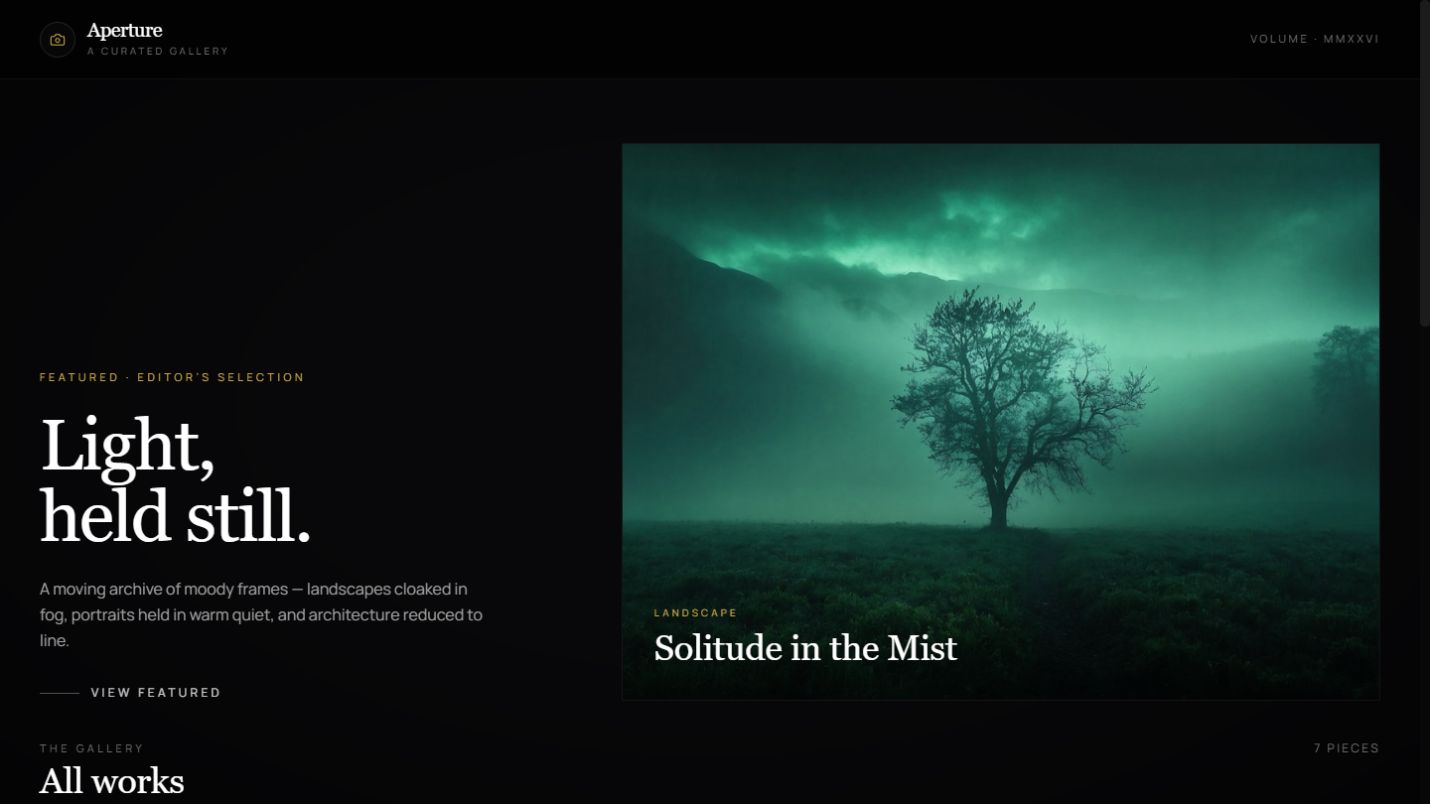
The public gallery is available to everyone. To manage photos, open the Admin Dashboard and sign in with the administrator email and password configured in your Emergent project secrets. There are no public user accounts. If you built your own version, replace the demo URL with your published domain followed by /admin.
2. Before you begin
Never type a real password into an AI prompt, a chat message, a screenshot, or frontend code. Real credentials belong only in your project's secure Secrets or Environment settings, which you configure in step 6.
3. Create the project
Start a new Emergent FastAPI/React project
Open Emergent, create a new project, and choose the FastAPI backend with React frontend environment. When the agent asks what you want to build, paste the complete master prompt from the next section as your very first message — nothing else.
Send the master prompt as one single message. Splitting it up is what makes the agent stop and ask clarifying questions.
4. Master build prompt
5. Answering the agent's five questions
| Question | Preselected answer |
|---|---|
| Admin authentication | JWT custom authentication with exactly one admin; email and password read from server-side environment variables |
| Image storage | Emergent Object Storage (never local server disk) |
| Theme | Cinematic and moody — deep blacks with warm amber/champagne glow accents |
| Seed content | Yes — 10-12 tasteful Unsplash samples and five categories |
| Any remaining question | Use sensible production-ready defaults and continue without asking |
6. Configure administrator secrets
What happens next
- 1.Emergent creates or confirms the variable names ADMIN_EMAIL and ADMIN_PASSWORD.
- 2.Emergent opens or points you to the secure Secrets or Environment screen.
- 3.Enter your chosen administrator email and a strong, unique password there — not in the chat.
- 4.Save the values and restart or redeploy the backend if Emergent instructs you to.
- 5.Open your published domain followed by /admin and sign in with the same email and password.
These are the only administrator credentials for this project; there are no public user accounts.
| Variable | What to enter |
|---|---|
| ADMIN_EMAIL | your administrator email |
| ADMIN_PASSWORD | a strong, unique password or passphrase |
Use your own real email and a strong unique password when you save them — but only inside the Secrets or Environment settings screen. Never place real secrets in the chat prompt, screenshots, client-side code, or a Git repository. Restart or redeploy the backend after saving so the new values load.
No. Keeping /admin out of the public navigation creates a cleaner visitor experience, but the route itself is not a security boundary. Anyone can guess /admin. Real protection must come from administrator authentication and protected backend operations; knowing the URL must never grant access by itself.
Hidden from normal navigation by design; securely protected, not secret.
7. Test the public gallery
8. Test the administrator workflow
Ask the agent to show you the route protections, or try a protected request from a signed-out private window. Hidden buttons are not security — the FastAPI backend must reject the request.
9. Refinement prompt
10. Publish and final review
You now have a public cinematic photography portfolio backed by a real API, a real database, object storage, and a secure single-administrator dashboard. Add your own photos and it is genuinely ready to share.